Mount/unmount sshfs as network goes up/down

You can use sshfs to mount directories from a file server into your local filesystem. When client and server OS is Linux, this is usually simpler than cifs or nfs mounts.

You need ssh logins without password (using an ssh agent) and the sshfs package:

sudo apt install sshfs

I use two bash scripts to ensure automatic mounting and un-mounting as my network comes up or goes down, especially when using wifi :

Copy the scripts to the following paths (or create symlinks) and use chmod ugo+x to make sure they are executable:

  • /etc/network/if-up.d/mount-sshfs
  • /etc/network/if-post-down.d/unmount-sshfs

If you use NetworkManager you might have to enable and start its dispatcher service:

sudo systemctl enable NetworkManager-dispatcher.service
sudo systemctl start NetworkManager-dispatcher.service

On Debian there is a system script that automatically translates NetworkManager events to ifupdown events:

/etc/NetworkManager/dispatcher.d/01-ifupdown

With the dispatcher and the translater script in place, our mount/unmount scripts will be executed as desired.

User script

Every user who wants to use the mechanism we have set up so far needs to have a personal shell script at

$HOME/.sshfs/mount.sh

For each user, this script contains the sshfs invocations that the user wants to be auto-executed. It will be invoked automatically from /etc/network/if-up.d/mount-sshfs using the user’s permissions. Users who don’t need sshfs mounts, simply don’t create the file at all.

It is up to the individual user to create this file and make it executable.

Here is an example that works well with gnome-keyring as ssh-agent:

#!/bin/bash

# expose env vars for gnome-keyring ssh-agent:
export SSH_AUTH_SOCK="/run/user/$(id -u)/keyring/ssh"
export SSH_AGENT_PID="$(pgrep -f /usr/bin/ssh-agent)"

# if the ssh agent is running:
if [ -n "$SSH_AGENT_PID" ]; then
  sshfs -o idmap=user,ro bubba:/opt/data /home/oliver/hosts/bubba/data
  sshfs -o idmap=user tc: /home/oliver/hosts/tc
fi

We use an Excito Bubba/2 mini server that hosts shared storage for the whole family (bubba:/opt/data) and a little ThinkCentre server where I have a user account (tc:). I mount each of those server locations locally under /home/oliver/hosts.

I mount the shared storage read-only to prevent accidental data loss (-o ro) and my personal files as read-write (-o rw), with ownership mapping by username (idmap=user) to ensure that “oliver” on the server is mapped to the local “oliver”.

Firefox ESR 91 now in Debian stable

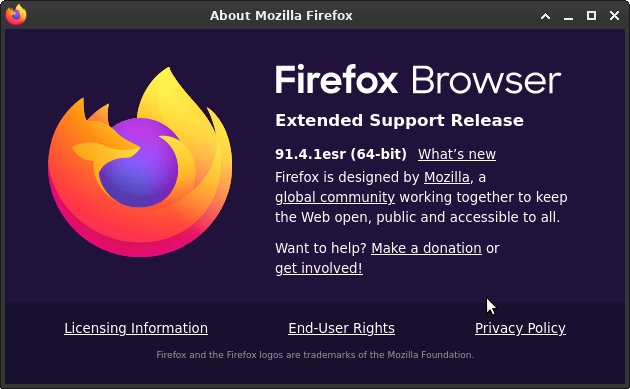
Until yesterday Debian “stable” came with Firefox ESR 78, a browser that has been unsupported by Mozilla since October 5, 2021. This lead to concerned discussions.

Now it was finally replaced by Firefox ESR 91, along with a security advisory urging users to upgrade, listing no fewer than 17 Common Vulnerabilities and Exposures (CVEs).

The delay was apparently due to toolchain issues with rustc, a compiler required to build Firefox from source code. Kudos to the package maintainers who worked hard to resolve these problems, which is tracked here!

I upgraded tonight:

$ sudo apt update; sudo apt upgrade
[..]
Get:1 http://security.debian.org/debian-security bullseye-security/main amd64 firefox-esr amd64 91.4.1esr-1~deb11u1 [58.7 MB]
[..]
Unpacking firefox-esr (91.4.1esr-1~deb11u1) over (78.15.0esr-1~deb11u1) ...
[..]
Setting up firefox-esr (91.4.1esr-1~deb11u1) ...

Besides the security fixes it looks like Mozilla has once again opted for further flattening the appearance of UI elements.

What else is new: https://www.mozilla.org/en-US/firefox/91.0esr/releasenotes/

PostgreSQL 13 and DBeaver CE on Debian

Install PostgreSQL 13 on a server:

sudo apt install postgresql-13

Create a PostgreSQL role and database for an existing OS user:

sudo -u postgres createuser --pwprompt oliver
sudo -u postgres createdb -O oliver oliver

Then make sure you have DBeaver CE installed on a client machine.

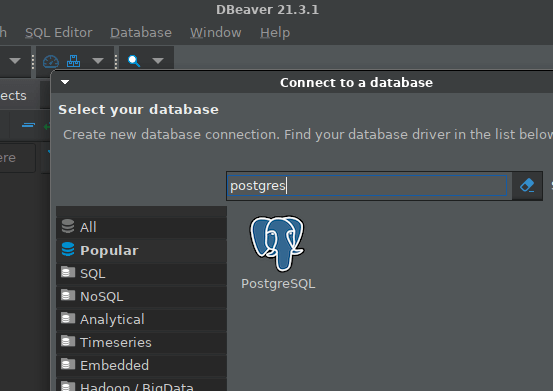
Create a connection from DBeaver to Postgres:

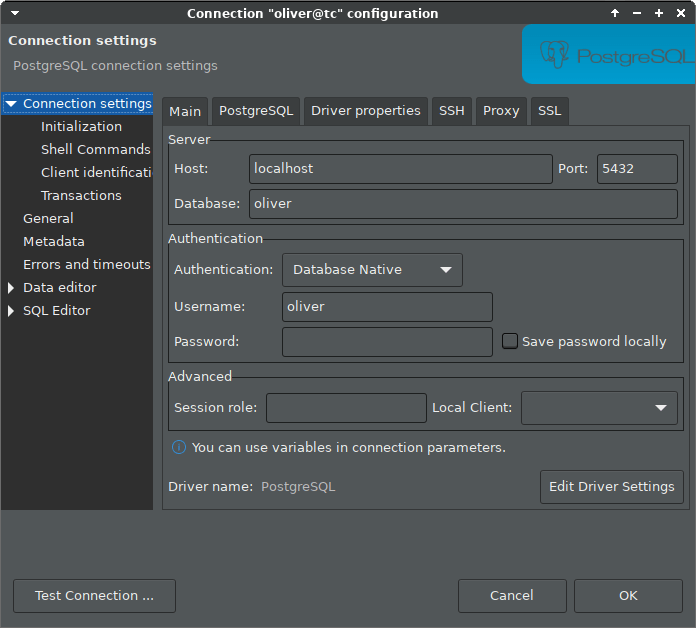
Configure authentication to database “oliver” via localhost, as we will use an ssh tunnel, and leave password empty:

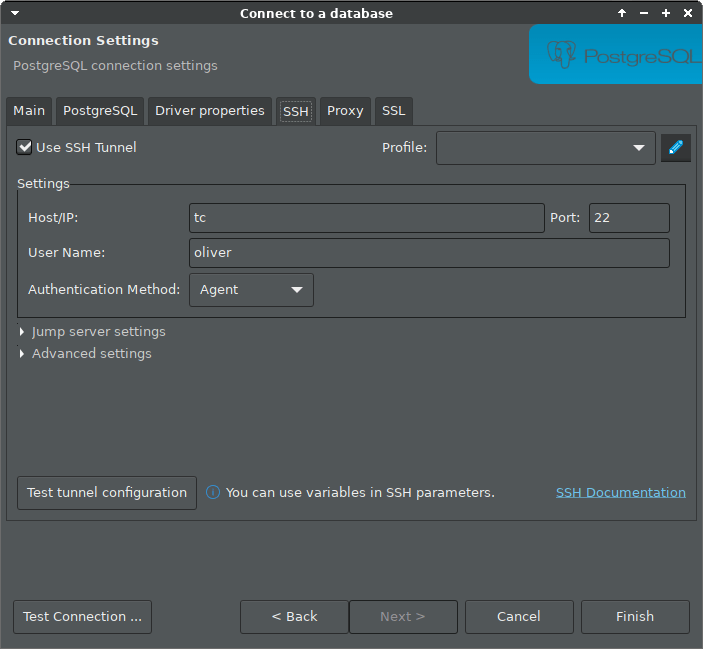
Configure ssh tunnel, for example if the server host is named “tc”. In the example we rely on a running ssh agent, which was explained in an earlier blog post.

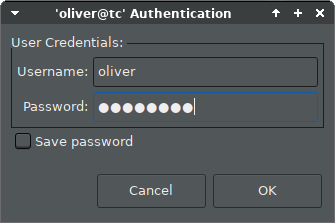
Then click “Connect” in the context menu of the new connection entry, and enter the password you assigned to the role:

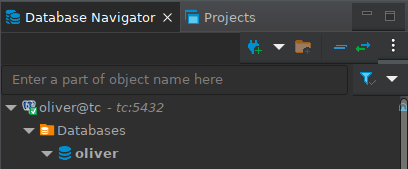
And you should be connected:

Safely install DBeaver CE on Debian

To install DBeaver CE (community edition) on a client machine using apt, we can add their apt repository to our apt source, but it is not recommended to add 3rd party keys to the global apt keyring. That’s why the whole apt-key command is actually deprecated.

For more background info, see https://wiki.debian.org/DebianRepository/UseThirdParty

So let’s download the DBeaver key and prepare it for safe use:

curl https://dbeaver.io/debs/dbeaver.gpg.key | gpg --dearmor > dbeaver.gpg
sudo mkdir -p /usr/local/share/keyrings
sudo mv dbeaver.gpg /usr/local/share/keyrings
sudo chown root.root /usr/local/share/keyrings/dbeaver.gpg
sudo chmod 400 /usr/local/share/keyrings/dbeaver.gpg

Then add the DBeaver repo to your apt sources with the proper signed-by annotation:

echo "deb [signed-by=/usr/local/share/keyrings/dbeaver.gpg] https://dbeaver.io/debs/dbeaver-ce /" | sudo tee /etc/apt/sources.list.d/dbeaver.list

And finally we can install DBeaver CE:

sudo apt update
sudo apt install dbeaver-ce

If all went well, you should now be able to run DBeaver from the “Development” section of your Applications menu.

Make lightdm look better

In Debian 11 the default lightdm login screen had two visual flaws:

  • The infobar content on top of the screen was not properly centered.
  • The generic user icon was some faint white thing.

I edited /etc/lightdm/lightdm-gtk-greeter.conf and added these two settings in the greeter section:

[greeter]
default-user-image=/usr/share/icons/Tango/scalable/apps/system-users.svg
indicators=~host;~spacer;~clock;~spacer;~power

For the icon to work the Tango icon theme is required. It is usually already installed. If not, run this:

sudo apt install tango-icon-theme

The icon looks like this:

Switch Debian 11 desktop-theme

I do not like the default Debian 11 Homeworld desktop theme at all.

Here is how to switch back to “futurePrototype” the default theme of Debian 10, but without displaying “Debian 10” anywhere:

sudo update-alternatives --config desktop-theme

Pick the /usr/share/desktop-base/futureprototype-theme.

Then to ensure we use the “nologo” background for the login manager:

sudo update-alternatives --install /usr/share/images/desktop-base/login-background.svg desktop-login-background /usr/share/desktop-base/active-theme/login/background-nologo.svg 100

Now you should see background-nologo.svg as the activated option for the desktop-login-background:

sudo update-alternatives --config desktop-login-background

The desktop-theme change also affects the background image of the grub boot loader, so we need to run this:

sudo update-grub

The next time we boot the system we should see background images from the configured theme for

  • Grub boot screen
  • Login manager (for example lightdm)
  • Desktop (for example XFCE)