PostgreSQL 13 and DBeaver CE on Debian

Install PostgreSQL 13 on a server:

sudo apt install postgresql-13

Create a PostgreSQL role and database for an existing OS user:

sudo -u postgres createuser --pwprompt oliver
sudo -u postgres createdb -O oliver oliver

Then make sure you have DBeaver CE installed on a client machine.

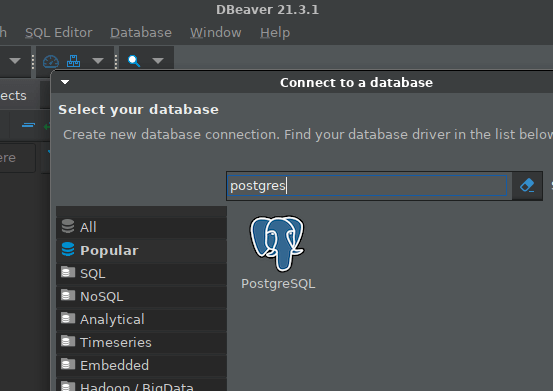
Create a connection from DBeaver to Postgres:
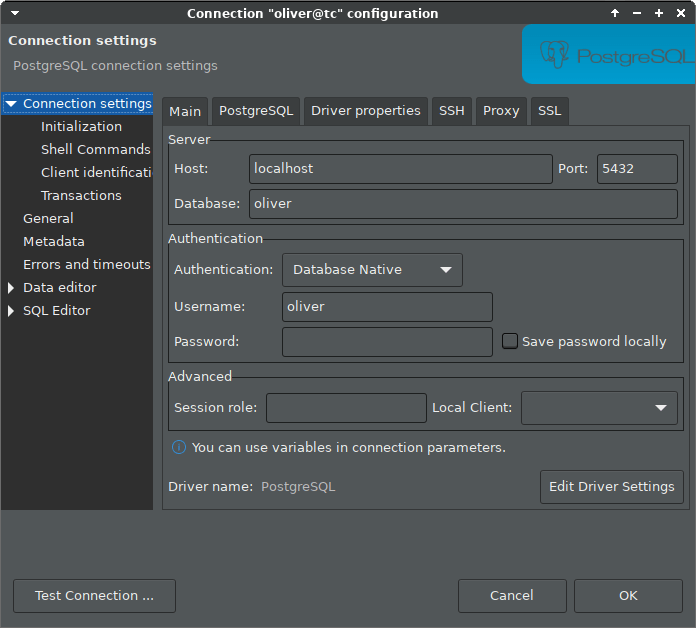
Configure authentication to database “oliver” via localhost, as we will use an ssh tunnel, and leave password empty:
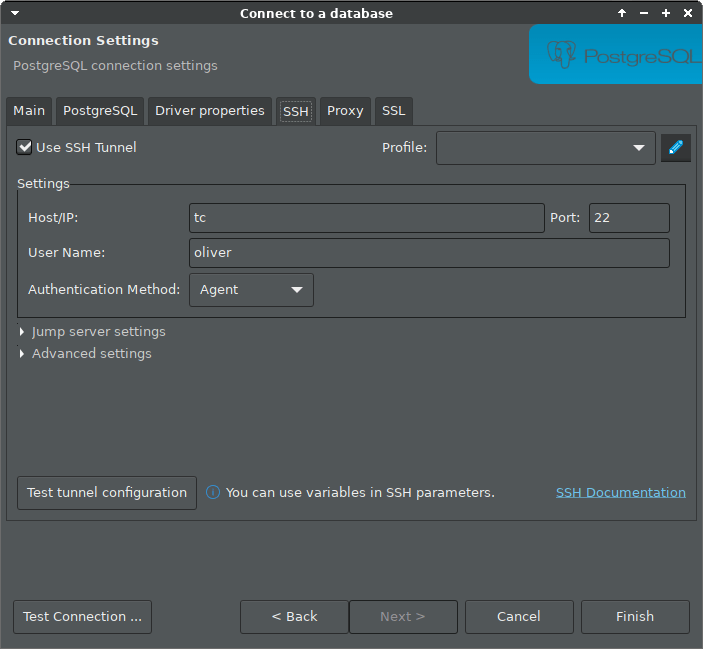
Configure ssh tunnel, for example if the server host is named “tc”. In the example we rely on a running ssh agent, which was explained in an earlier blog post.
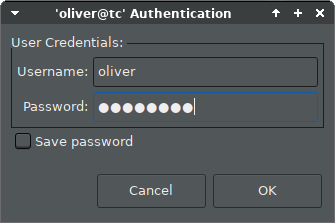
Then click “Connect” in the context menu of the new connection entry, and enter the password you assigned to the role:
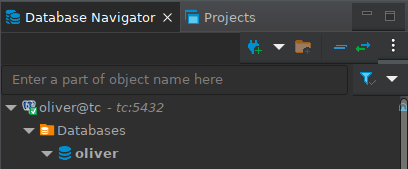
And you should be connected:
Safely install DBeaver CE on Debian

To install DBeaver CE (community edition) on a client machine using apt, we can add their apt repository to our apt source, but it is not recommended to add 3rd party keys to the global apt keyring. That’s why the whole apt-key command is actually deprecated.

For more background info, see https://wiki.debian.org/DebianRepository/UseThirdParty

So let’s download the DBeaver key and prepare it for safe use:

curl https://dbeaver.io/debs/dbeaver.gpg.key | gpg --dearmor > dbeaver.gpg
sudo mkdir -p /usr/local/share/keyrings
sudo mv dbeaver.gpg /usr/local/share/keyrings
sudo chown root.root /usr/local/share/keyrings/dbeaver.gpg
sudo chmod 400 /usr/local/share/keyrings/dbeaver.gpg

Then add the DBeaver repo to your apt sources with the proper signed-by annotation:

echo "deb [signed-by=/usr/local/share/keyrings/dbeaver.gpg] https://dbeaver.io/debs/dbeaver-ce /" | sudo tee /etc/apt/sources.list.d/dbeaver.list

And finally we can install DBeaver CE:

sudo apt update
sudo apt install dbeaver-ce

If all went well, you should now be able to run DBeaver from the “Development” section of your Applications menu.