Mount/unmount sshfs as network goes up/down

You can use sshfs to mount directories from a file server into your local filesystem. When client and server OS is Linux, this is usually simpler than cifs or nfs mounts.

You need ssh logins without password (using an ssh agent) and the sshfs package:

sudo apt install sshfs

I use two bash scripts to ensure automatic mounting and un-mounting as my network comes up or goes down, especially when using wifi :

Copy the scripts to the following paths (or create symlinks) and use chmod ugo+x to make sure they are executable:

  • /etc/network/if-up.d/mount-sshfs
  • /etc/network/if-post-down.d/unmount-sshfs

If you use NetworkManager you might have to enable and start its dispatcher service:

sudo systemctl enable NetworkManager-dispatcher.service
sudo systemctl start NetworkManager-dispatcher.service

On Debian there is a system script that automatically translates NetworkManager events to ifupdown events:

/etc/NetworkManager/dispatcher.d/01-ifupdown

With the dispatcher and the translater script in place, our mount/unmount scripts will be executed as desired.

User script

Every user who wants to use the mechanism we have set up so far needs to have a personal shell script at

$HOME/.sshfs/mount.sh

For each user, this script contains the sshfs invocations that the user wants to be auto-executed. It will be invoked automatically from /etc/network/if-up.d/mount-sshfs using the user’s permissions. Users who don’t need sshfs mounts, simply don’t create the file at all.

It is up to the individual user to create this file and make it executable.

Here is an example that works well with gnome-keyring as ssh-agent:

#!/bin/bash

# expose env vars for gnome-keyring ssh-agent:
export SSH_AUTH_SOCK="/run/user/$(id -u)/keyring/ssh"
export SSH_AGENT_PID="$(pgrep -f /usr/bin/ssh-agent)"

# if the ssh agent is running:
if [ -n "$SSH_AGENT_PID" ]; then
  sshfs -o idmap=user,ro bubba:/opt/data /home/oliver/hosts/bubba/data
  sshfs -o idmap=user tc: /home/oliver/hosts/tc
fi

We use an Excito Bubba/2 mini server that hosts shared storage for the whole family (bubba:/opt/data) and a little ThinkCentre server where I have a user account (tc:). I mount each of those server locations locally under /home/oliver/hosts.

I mount the shared storage read-only to prevent accidental data loss (-o ro) and my personal files as read-write (-o rw), with ownership mapping by username (idmap=user) to ensure that “oliver” on the server is mapped to the local “oliver”.
Enter passphrase once at X login for ssh, scp, sshfs

I use ssh, scp, sshfs and x2go with key-based authentication, ie. not entering remote passwords when I connect. There are pros and cons of this, but I think it is more secure.

I use a non-empty passphrase but do not want to enter it on every connection. Once per X session is enough for me.

Here is how I set it up on Debian 11 (“bullseye”):

# do this once and set a good passphrase:
ssh-keygen
# then for each of your accounts on remote hosts:
ssh-copy-id username@otherhost

Configure ssh agent and ssh-add to run when your X session starts. I use the gnome-keyring service as agent:

sudo apt install gnome-keyring

In XFCE – Settings – Session and Startup – Application Autostart, I have two entries with trigger “on login” :

  • “SSH Key Agent (GNOME Keyring: SSH Agent)”
  • “ssh-add” – created by me, command: ssh-add

This setup will bring up a visual prompt for your ssh passphrase right after XFCE login. The default ssh-askpass looks quite ugly, so I installed a more modern one:

sudo apt install ssh-askpass-gnome

On Debian, that package sets itself as default ssh-askpass “alternative”. If in doubt , try this:

sudo update-alternatives --config ssh-askpass

The resulting prompt looks like this for me (“Adwaita Dark” theme):

After all this your ssh, scp, sshfs, x2go and other ssh based tools should be able to connect to your remote accounts without password prompts.

Update: I took convenience one step further and enabled “Launch GNOME services on startup” in the Advanced tab of Session and Startup in the XFCE setting, as described in the XFCE wiki.

This activates GNOME Keyring which “is integrated with the user’s login, so that their secret storage can be unlocked when the user logins into their session”. This means it will store your once entered ssh passphrase on disk, using your Linux login as the only secret that you still have to enter (as you log in as usual).

Connect to Cisco AnyConnect using Debian buster

My employer uses a Cisco AnyConnect VPN.

Today I set up my Debian GNU/Linux 10 (“buster”) to connect to it, using only Open Source components.

My setup:

  • XFCE desktop
  • network-manager
  • openconnect

To install the required packages:

sudo apt install openconnect network-manager-openconnect-gnome network-manager-gnome curl xmlstarlet

The curl and xmlstarlet packages are used by csd-post.sh, a Cisco Anyconnect CSD wrapper script included with OpenConnect.

Debian 10 by default demands at least TLS 1.3 which caused this error:

error:1425F102:SSL routines:ssl_choose_client_version:unsupported protocol

I fixed it by creating a more relaxed openssl configuration:

sudo cp /etc/ssl/openssl.cnf /etc/ssl/openssl_tls_1_0.cnf
sudo vi /etc/ssl/openssl_tls_1_0.cnf

Change only the “MinProtocol” line towards the end of the file to

MinProtocol = TLSv1.0

Then add a helper script /usr/local/bin/csd-post-tls-1-0.sh to use the relaxed config:

#!/bin/bash
export OPENSSL_CONF="/etc/ssl/openssl_tls_1_0.cnf"
/usr/libexec/openconnect/csd-post.sh "$@"

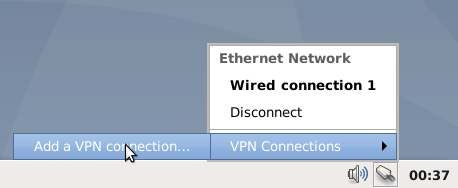
Then configure your VPN connection through the network-manager applet (you might have to logout/login to let XFCE autostart the systray applet):

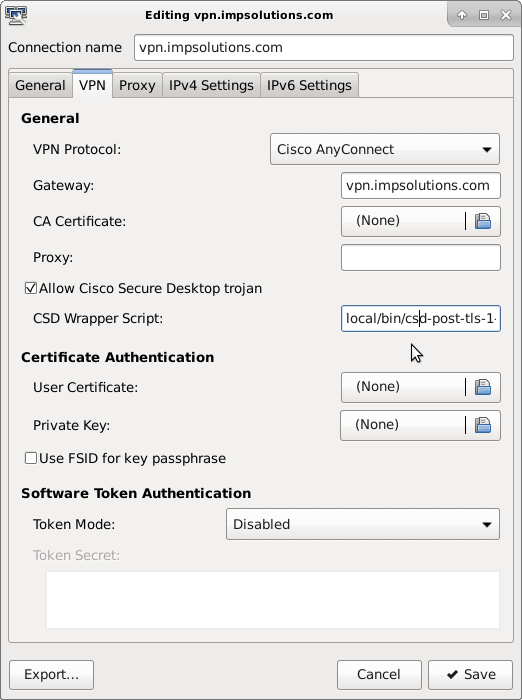
Check “Allow Cisco Secure Desktop trojan” and as “CSD Wrapper Script” use /usr/local/bin/csd-post-tls-1-0.sh :

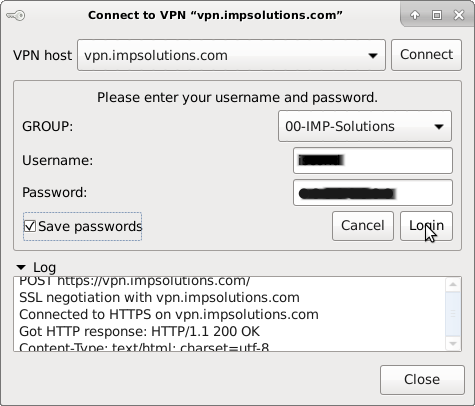
And finally connect:

Klassikradio MP3 streams

Klassikradio is a German radio station with an easy-to-digest selection of classical music, movie themes and other relaxing sounds, with not too many commercials.

They have many channels, all available as mp3 streams. They can be found and played in your browser at http://www.klassikradio.de/webplayer

To play the audio streams outside of a web browser, I retrieved and saved the stream urls as m3u files, using the shell script below. It used to work until Klassikradio changed its website:

#! /bin/bash

index_url='http://www.klassikradio.de/webplayer'
audio_url='http://stream.klassikradio.de/[^/]*'

for x in $(wget -q -O - "${index_url}" | grep -o "${audio_url}"); do 
  echo "${x}" > "klassikradio-$(basename "${x}").m3u";
done

The resulting m3u files are still available from here.

M3U files are the easiest way to “bookmark” media streams to be played by an audio player of your choice.

I use the VLC player with the “Allow only one instance” setting and configure it as the default application for *.m3u files.

Nagios NRPE wrapper to encode meta-characters

The Nagios Remote Plugin Executor allows remote execution of Nagios check commands, which is a powerful tool for monitoring the health of the machines and services on your network.

If your remote commands take command line parameters, you might run into trouble regarding special characters, typically required in regular expressions and other values you might want to send across. To actually see the error on the target machine, you need to Create a Log File for NRPE.

If your command fails due to this kind of error, then read on:

Apr 6 18:06:58 somehost nrpe[somepid]: Error: Request contained illegal metachars!
Apr 6 18:06:58 somehost nrpe[somepid]: Client request was invalid, bailing out...

NRPE inspects the arguments for characters that have special meaning for typical Unix shells to prevent shell command injection. If it encounters any charcaters deemed unsafe the command execution is rejected and you will see the error message above.

Unfortunately NRPE does not provide a way to safely encode and decode the parameter values.

To work around this, I created a wrapper script for the check_nrpe command, let’s call it check_nrpe_urlencoded.sh. I chose url-encoding for its simplicity and familiarity. The goal is to be able to create Nagios command definitions like this:

$USER1$/custom_scripts/check_nrpe_urlencoded.sh -H $HOSTADDRESS$ -c my_remote_command -a '$ARG1$' '$ARG2$'

And the remote command would bedefined in /etc/nagios/nrpe.cfg or under in a custom file under /etc/nrpe.d/, depending on your Linux distribtion:

command[my_remote_command]=/path_to_my_custom_nrpe_plugins/my_remote_command.sh '$ARG1$' '$ARG2$'

Here is a possible implementation of check_nrpe_urlencoded.sh:

#! /bin/bash

command='/usr/lib/nagios/plugins/check_nrpe'
args='no'

urlencode() {
    old_lc_collate=$LC_COLLATE
    LC_COLLATE=C

    local length="${#1}"
    for (( i = 0; i < length; i++ )); do
        local c="${1:i:1}"
        case ${c} in
            [a-zA-Z0-9.~_-]) printf "$c" ;;
            *) printf '%%%02X' "'$c" ;;
        esac
    done

    LC_COLLATE=${old_lc_collate}
}

for x in "$@"; do
  if [ ${x} = '-a' ]; then
    args='yes';
  else
    if [ ${args} = 'yes' ]; then
       x=$(urlencode ${x})
    fi
  fi
  command="${command} ${x}"
done

# execute the check_nrpe with the encoded args:
${command}

In the remote shell script like my_remote_command.sh, you would then decode the arguments like this:

function urldecode() {
  local url_encoded="${1//+/ }"
  printf '%b' "${url_encoded//%/\\x}"
}
arg1="$(urldecode $1)"
arg2="$(urldecode $2)"

And then use the decoded arguments as before.

bash : Loop over lines in file with user prompt

I used the following to loop over the lines in a file, while prompting the user for a key press on each iteration:

while read -u 3 line ; do 
  #clear the screen
  printf "\033c" 
  echo "$line"; echo

  # do something with the $line here

  read -n 1 -s -p "[Press any key to continue]"
done 3< "some-file.txt"

The reading of the lines is done via file descriptor 3 to avoid interference with the reading of the user’s key presses.