Recursively compare content of two directories

Command line

This requires the diff and vim packages.

diff --recursive /dir/ect/ory1 /dir/ect/ory2 > 1_vs_2.diff
vimdiff 1_vs_2.diff

Potentially useful diff options:

--ignore-all-space
--exclude=.svn

GUI

Install Intellij CE.

Then either Run IntelliJ Diff from the command-line.

Or from within a running Intellij window:

  • Open a common parent directory as a project
  • Select the two directories to compare
  • Right-click – Compare Directories

Alternatives

I often see the GPL-licensed WinMerge tool recommended, But it works only on Windows, last release was 2013 and navigation into sub-directories and file diffs is a bit clunkier than in Intellij.
Diff zipped files in Intellij using “Archive” file type

Some file types are really just zipped (or maybe gzipped) folders containing xml and/or other plaintext based files.

For example

  • *.epub e-books
  • OpenDocument files
  • Java source jar files
  • JEE web application archives (*.war)
  • Pentaho report files (*.prpt)

If you happen to have such files in a software project, and don’t want to treat them like opaque binary blobs, you need a tool that helps you to transparently unzip, act on and rezip them. Also you probably want to be able to diff them without resorting to commercial tools like BeyondCompare.

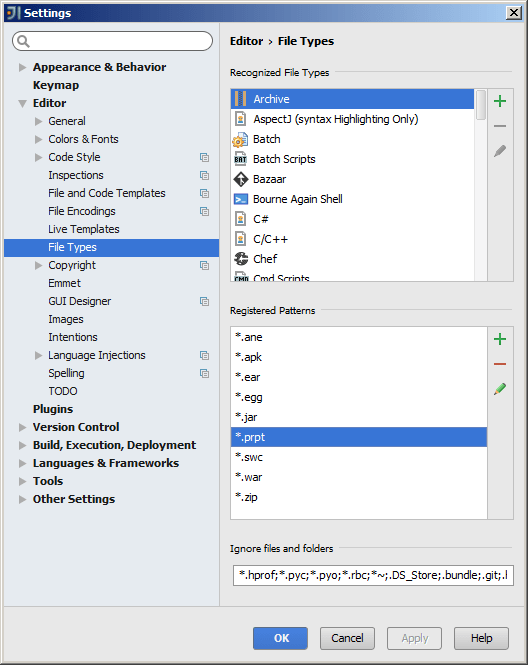
IntelliJ CE (Community Edition) supports archive diffs as part of its regular Comparing Files functionality. All you need to do is make sure the file extension of the file types you want to be treated as archives are accordingly registered in Settings – Editor – File Types.

The screenshot below shows *.war and *.jar registered as Archive file name patterns (by default) and *.prpt (Pentaho report files) as an example of a manually added pattern:

intellij_register-pentaho-prpt-as-archive-file-type

Configure Intellij to use default Eclipse Java import layout

Eclipse and Intellij use different default layouts of Java imports. If used on the same project, Eclipse’s “Organize Imports” will compete with Intellij’s “Optimize Imports“.

To avoid distracting back-and-forth code changes, Intellij can be configured to match the default Eclipse behavior:

Go to File – Settings – Editor – Code Style – Java – Imports tab

Prevent on-demand imports (i.e. wildcards) by settings high count limits:
intellij-java-imports-no-wildcards

Define the imports layout (i.e. grouping and order) like this:
intellij-java-imports-layout

Java software engineering – reference resources

Official Java and JEE

Java Technology Reference

Java Standard Edition (JSE)

Java Enterprise Edition (JEE)

The official Java tutorials

The official JEE 7 tutorial

JEE 7 Technologies index

Java language spec and JVM spec

Java community

Oracle Java community

OpenJDK

Java Community Process (JCP)

Apache Commons

Apache.org Java projects

JBoss.org

Spring

Google Guava

Trending Java projects on github

JEE and Java web servers

Apache Tomcat

JBoss Wildfly

Glassfish

Build and test automation

Sonatype Maven books

Jenkins documentation (wiki)

JUnit reference documentation

Source and version control

The SVN reference book

Git reference documentation

Java IDEs

Intellij IDEA documentation

Eclipse documentation

Netbeans knowledge base

Vim configuration for Java coding

Java remote debugging JVM options

Java 5, 6, 7 and newer

The Java™ Platform Debugger Architecture (JPDA) supports certain JVM invocation options.

Usually this boils down to:

-agentlib:jdwp=transport=dt_socket,server=y,suspend=y

This will cause your JVM process to execute but wait (suspend=y) and listen for a socket connection from a remote debugging client on a free port (which it will write to stdout. The suspend=y option is especially useful if you need to debug code that runs during the start-up phase of your application.

If you don’t want the process to do the initial waiting, then use suspend=n.

Java 1.4

If you are for some terrible reason stuck on Java 1.4, then you must use the older approach like this:

-Xdebug -Xrunjdwp:transport=dt_socket,server=y,suspend=n

Tomcat

To enabled remote debugging for a Apache Tomcat on Windows, create bin\setenv.bat in your Tomcat installation, with this content:

set "CATALINA_OPTS=-agentlib:jdwp=transport=dt_socket,server=y,suspend=n"

Network port

If you use the settings above, i.e. server=y and no “address” option, JPDA will pick a free port and write a message about this to stdout. Look for something like this:

Listening for transport dt_socket at address: [PORT]

Intellij configuration

Add a debug configuration via Run menu:

Using libgdx for cross-platform app development

I am looking for a framework that allows me to develop modern apps (mobile, web, desktop) all from one Java codebase. I prefer Java because I know it very well, it is already cross-platform and a statically typed language that allows IntelliJ, Eclipse and Netbeans to be better than any dynamically typed scripting language editor could ever be.

Currently my favorite is libgdx. I am planning to use it with IntelliJ Community Edition and with Maven.

By using RoboVM, libgdx even supports iOS.

For user input (forms) libgdx provides the scene2d.ui widgets. I hope that will be sufficient for most of my UIs. Now I just have to get OpenGL to work on my Linux box …

My current IntelliJ code inspections profile for Java projects

I recently exported my IntelliJ code inspections profile for Java projects from IntelliJ Community Edition to share it with whoever might be interested.

These highly customized code inspections are based on industry standards like the official Java code conventions, various best practices from the Java community and my experience over many years as Java developer and team lead, trying to ensure code quality and maintainability.

Feel free to download and save it as a local XML file. Then you can import it into any of your IntelliJ projects via Analyze – Inspect Code – Inspection profile – […] button – Import:

Subversion 1.8 released

The new Subversion 1.8 features look quite good for a centralized Version Control System (VCS).

But note that the Subversion 1.8 working copy format is backwards-incompatible. Some tools like recent TortoiseSVN versions will use the 1.8 format by default which will cause compatibility problems for IntelliJ and any other tools that do not yet support it.

So for now, it is probably better to stick with 1.7 and wait until all your tools fully support 1.8. For IntelliJ you might want to watch [IDEA-94942] for status updates.

Personally, I am more interested in Git anyway because it offers all the flexibility of a decentralized VCS. I am reading the free “Pro Git” ebook on my Kobo eReader (epub format).