Switch Debian 11 desktop-theme

I do not like the default Debian 11 Homeworld desktop theme at all.

Here is how to switch back to “futurePrototype” the default theme of Debian 10, but without displaying “Debian 10” anywhere:

sudo update-alternatives --config desktop-theme

Pick the /usr/share/desktop-base/futureprototype-theme.

Then to ensure we use the “nologo” background for the login manager:

sudo update-alternatives --install /usr/share/images/desktop-base/login-background.svg desktop-login-background /usr/share/desktop-base/active-theme/login/background-nologo.svg 100

Now you should see background-nologo.svg as the activated option for the desktop-login-background:

sudo update-alternatives --config desktop-login-background

The desktop-theme change also affects the background image of the grub boot loader, so we need to run this:

sudo update-grub

The next time we boot the system we should see background images from the configured theme for

  • Grub boot screen
  • Login manager (for example lightdm)
  • Desktop (for example XFCE)

Enter passphrase once at X login for ssh, scp, sshfs

I use ssh, scp, sshfs and x2go with key-based authentication, ie. not entering remote passwords when I connect. There are pros and cons of this, but I think it is more secure.

I use a non-empty passphrase but do not want to enter it on every connection. Once per X session is enough for me.

Here is how I set it up on Debian 11 (“bullseye”):

# do this once and set a good passphrase:
ssh-keygen
# then for each of your accounts on remote hosts:
ssh-copy-id username@otherhost

Configure ssh agent and ssh-add to run when your X session starts. I use the gnome-keyring service as agent:

sudo apt install gnome-keyring

In XFCE – Settings – Session and Startup – Application Autostart, I have two entries with trigger “on login” :

  • “SSH Key Agent (GNOME Keyring: SSH Agent)”
  • “ssh-add” – created by me, command: ssh-add

This setup will bring up a visual prompt for your ssh passphrase right after XFCE login. The default ssh-askpass looks quite ugly, so I installed a more modern one:

sudo apt install ssh-askpass-gnome

On Debian, that package sets itself as default ssh-askpass “alternative”. If in doubt , try this:

sudo update-alternatives --config ssh-askpass

The resulting prompt looks like this for me (“Adwaita Dark” theme):

After all this your ssh, scp, sshfs, x2go and other ssh based tools should be able to connect to your remote accounts without password prompts.

Update: I took convenience one step further and enabled “Launch GNOME services on startup” in the Advanced tab of Session and Startup in the XFCE setting, as described in the XFCE wiki.

This activates GNOME Keyring which “is integrated with the user’s login, so that their secret storage can be unlocked when the user logins into their session”. This means it will store your once entered ssh passphrase on disk, using your Linux login as the only secret that you still have to enter (as you log in as usual).

Hide window from taskbar

Some application windows are sort of “background noise” and you would usually not like to see them on your taskbar, i.e. on the panel item that shows a button for each application window. Often, applications like that support a “minimize to system tray” option, but some don’t.

In the latter case you might at least want to have a convenient way to hide those windows from your taskbar. I did the following on Debian stable:

Install the “wmctrl” package:

sudo apt install wmctrl

In my XFCE, I added a launcher to the panel, specifying the command:

wmctrl -r :SELECT: -b add,skip_taskbar

See “man wmctrl” for details.

Unicode Emoji Committee 2021 : “Race is Not a Skin Tone. Gender is Not a Haircut”

Yet this idea seems to underly the simplistic 3-dimensional model used to create the new compound emojis shown below that were added to the Unicode standard in 2021:

5 skin tones × 2 haircuts × 2 mouth expressions (kiss/neutral) × 5 skin tones × 2 haircuts
= 10 × 2 × 10 = 200 depictions

Maybe the richness of human love just doesn’t lend itself to be represented like this?

Read more at: https://home.unicode.org/emoji/about-emoji/

👨🏻‍❤️‍👨🏻 👨🏻‍❤️‍👨🏼 👨🏻‍❤️‍👨🏽👨🏻‍❤️‍👨🏾 👨🏻‍❤️‍👨🏿 👨🏼‍❤️‍👨🏻👨🏼‍❤️‍👨🏼 👨🏼‍❤️‍👨🏽 👨🏼‍❤️‍👨🏾👨🏼‍❤️‍👨🏿 👨🏽‍❤️‍👨🏻 👨🏽‍❤️‍👨🏼👨🏽‍❤️‍👨🏽 👨🏽‍❤️‍👨🏾 👨🏽‍❤️‍👨🏿👨🏾‍❤️‍👨🏻 👨🏾‍❤️‍👨🏼 👨🏾‍❤️‍👨🏽👨🏾‍❤️‍👨🏾 👨🏾‍❤️‍👨🏿 👨🏿‍❤️‍👨🏻👨🏿‍❤️‍👨🏼 👨🏿‍❤️‍👨🏽 👨🏿‍❤️‍👨🏾👨🏿‍❤️‍👨🏿 👩🏻‍❤️‍👨🏻 👩🏻‍❤️‍👨🏼👩🏻‍❤️‍👨🏽 👩🏻‍❤️‍👨🏾 👩🏻‍❤️‍👨🏿👩🏻‍❤️‍👩🏻 👩🏻‍❤️‍👩🏼 👩🏻‍❤️‍👩🏽👩🏻‍❤️‍👩🏾 👩🏻‍❤️‍👩🏿 👩🏼‍❤️‍👨🏻👩🏼‍❤️‍👨🏼 👩🏼‍❤️‍👨🏽 👩🏼‍❤️‍👨🏾👩🏼‍❤️‍👨🏿 👩🏼‍❤️‍👩🏻 👩🏼‍❤️‍👩🏼👩🏼‍❤️‍👩🏽 👩🏼‍❤️‍👩🏾 👩🏼‍❤️‍👩🏿👩🏽‍❤️‍👨🏻 👩🏽‍❤️‍👨🏼 👩🏽‍❤️‍👨🏽👩🏽‍❤️‍👨🏾 👩🏽‍❤️‍👨🏿 👩🏽‍❤️‍👩🏻👩🏽‍❤️‍👩🏼 👩🏽‍❤️‍👩🏽 👩🏽‍❤️‍👩🏾👩🏽‍❤️‍👩🏿 👩🏾‍❤️‍👨🏻 👩🏾‍❤️‍👨🏼👩🏾‍❤️‍👨🏽 👩🏾‍❤️‍👨🏾 👩🏾‍❤️‍👨🏿👩🏾‍❤️‍👩🏻 👩🏾‍❤️‍👩🏼 👩🏾‍❤️‍👩🏽👩🏾‍❤️‍👩🏾 👩🏾‍❤️‍👩🏿 👩🏿‍❤️‍👨🏻👩🏿‍❤️‍👨🏼 👩🏿‍❤️‍👨🏽 👩🏿‍❤️‍👨🏾👩🏿‍❤️‍👨🏿 👩🏿‍❤️‍👩🏻 👩🏿‍❤️‍👩🏼👩🏿‍❤️‍👩🏽 👩🏿‍❤️‍👩🏾 👩🏿‍❤️‍👩🏿🧑🏻‍❤️‍🧑🏼 🧑🏻‍❤️‍🧑🏽 🧑🏻‍❤️‍🧑🏾🧑🏻‍❤️‍🧑🏿 🧑🏼‍❤️‍🧑🏻 🧑🏼‍❤️‍🧑🏽🧑🏼‍❤️‍🧑🏾 🧑🏼‍❤️‍🧑🏿 🧑🏽‍❤️‍🧑🏻🧑🏽‍❤️‍🧑🏼 🧑🏽‍❤️‍🧑🏾 🧑🏽‍❤️‍🧑🏿🧑🏾‍❤️‍🧑🏻 🧑🏾‍❤️‍🧑🏼 🧑🏾‍❤️‍🧑🏽🧑🏾‍❤️‍🧑🏿 🧑🏿‍❤️‍🧑🏻 🧑🏿‍❤️‍🧑🏼🧑🏿‍❤️‍🧑🏽 🧑🏿‍❤️‍🧑🏾 👨🏻‍❤️‍💋‍👨🏻👨🏻‍❤️‍💋‍👨🏼 👨🏻‍❤️‍💋‍👨🏽 👨🏻‍❤️‍💋‍👨🏾👨🏻‍❤️‍💋‍👨🏿 👨🏼‍❤️‍💋‍👨🏻 👨🏼‍❤️‍💋‍👨🏼👨🏼‍❤️‍💋‍👨🏽 👨🏼‍❤️‍💋‍👨🏾 👨🏼‍❤️‍💋‍👨🏿👨🏽‍❤️‍💋‍👨🏻 👨🏽‍❤️‍💋‍👨🏼 👨🏽‍❤️‍💋‍👨🏽👨🏽‍❤️‍💋‍👨🏾 👨🏽‍❤️‍💋‍👨🏿 👨🏾‍❤️‍💋‍👨🏻👨🏾‍❤️‍💋‍👨🏼 👨🏾‍❤️‍💋‍👨🏽 👨🏾‍❤️‍💋‍👨🏾👨🏾‍❤️‍💋‍👨🏿 👨🏿‍❤️‍💋‍👨🏻 👨🏿‍❤️‍💋‍👨🏼👨🏿‍❤️‍💋‍👨🏽 👨🏿‍❤️‍💋‍👨🏾 👨🏿‍❤️‍💋‍👨🏿👩🏻‍❤️‍💋‍👨🏻 👩🏻‍❤️‍💋‍👨🏼 👩🏻‍❤️‍💋‍👨🏽👩🏻‍❤️‍💋‍👨🏾 👩🏻‍❤️‍💋‍👨🏿 👩🏻‍❤️‍💋‍👩🏻👩🏻‍❤️‍💋‍👩🏼 👩🏻‍❤️‍💋‍👩🏽 👩🏻‍❤️‍💋‍👩🏾👩🏻‍❤️‍💋‍👩🏿 👩🏼‍❤️‍💋‍👨🏻 👩🏼‍❤️‍💋‍👨🏼👩🏼‍❤️‍💋‍👨🏽 👩🏼‍❤️‍💋‍👨🏾 👩🏼‍❤️‍💋‍👨🏿👩🏼‍❤️‍💋‍👩🏻 👩🏼‍❤️‍💋‍👩🏼 👩🏼‍❤️‍💋‍👩🏽👩🏼‍❤️‍💋‍👩🏾 👩🏼‍❤️‍💋‍👩🏿 👩🏽‍❤️‍💋‍👨🏻👩🏽‍❤️‍💋‍👨🏼 👩🏽‍❤️‍💋‍👨🏽 👩🏽‍❤️‍💋‍👨🏾👩🏽‍❤️‍💋‍👨🏿 👩🏽‍❤️‍💋‍👩🏻 👩🏽‍❤️‍💋‍👩🏼👩🏽‍❤️‍💋‍👩🏽 👩🏽‍❤️‍💋‍👩🏾 👩🏽‍❤️‍💋‍👩🏿👩🏾‍❤️‍💋‍👨🏻 👩🏾‍❤️‍💋‍👨🏼 👩🏾‍❤️‍💋‍👨🏽👩🏾‍❤️‍💋‍👨🏾 👩🏾‍❤️‍💋‍👨🏿 👩🏾‍❤️‍💋‍👩🏻👩🏾‍❤️‍💋‍👩🏼 👩🏾‍❤️‍💋‍👩🏽 👩🏾‍❤️‍💋‍👩🏾👩🏾‍❤️‍💋‍👩🏿 👩🏿‍❤️‍💋‍👨🏻 👩🏿‍❤️‍💋‍👨🏼👩🏿‍❤️‍💋‍👨🏽 👩🏿‍❤️‍💋‍👨🏾 👩🏿‍❤️‍💋‍👨🏿👩🏿‍❤️‍💋‍👩🏻 👩🏿‍❤️‍💋‍👩🏼 👩🏿‍❤️‍💋‍👩🏽👩🏿‍❤️‍💋‍👩🏾 👩🏿‍❤️‍💋‍👩🏿 🧑🏻‍❤️‍💋‍🧑🏼🧑🏻‍❤️‍💋‍🧑🏽 🧑🏻‍❤️‍💋‍🧑🏾 🧑🏻‍❤️‍💋‍🧑🏿🧑🏼‍❤️‍💋‍🧑🏻 🧑🏼‍❤️‍💋‍🧑🏽 🧑🏼‍❤️‍💋‍🧑🏾🧑🏼‍❤️‍💋‍🧑🏿 🧑🏽‍❤️‍💋‍🧑🏻 🧑🏽‍❤️‍💋‍🧑🏼🧑🏽‍❤️‍💋‍🧑🏾 🧑🏽‍❤️‍💋‍🧑🏿 🧑🏾‍❤️‍💋‍🧑🏻🧑🏾‍❤️‍💋‍🧑🏼 🧑🏾‍❤️‍💋‍🧑🏽 🧑🏾‍❤️‍💋‍🧑🏿🧑🏿‍❤️‍💋‍🧑🏻 🧑🏿‍❤️‍💋‍🧑🏼 🧑🏿‍❤️‍💋‍🧑🏽🧑🏿‍❤️‍💋‍🧑🏾

Webex web client in Firefox could not acquire local media

If you run Webex Teams – i.e. http://teams.webex.com – in Firefox and join a video meeting, you might see the error

Could not acquire local media. Please check your settings.

This probably means that support for the H264 video format is missing.

Go to “about:config” and search for

media.gmp-gmpopenh264.enabled

and set it to “true”.

Restart Firefox, and go to “about:addons”, click “Plugins”.

The plugin “OpenH264 Video Codec provided by Cisco Systems, Inc.” should now be installed, and video calls in the Webex web client should now work.

X over RDP with Debian client/server

I wanted to remote desktop from a Debian machine to another Debian machine. Both have Xorg installed, i.e. the target is not a headless server.

Installed xrdp on the target (server) side:
sudo apt install xrdp

Installed xfreerdp on the client side:
sudo apt install freerdp2-x11

Run xfreerdp to connect to xrdp (my target hostname is “basement”):
xfreerdp /v:basement +glyph-cache /f

The “+glyph-cache” is a workaround for https://github.com/neutrinolabs/xrdp/issues/1266. The “/f” is for fullscreen.

Further reading: https://linuxize.com/post/how-to-install-xrdp-on-debian-10/

Undo/Redo in Java using Protostuff serialization and binary diffs

Many applications need Undo/Redo functionality. Commonly used implementation patterns are:

  • Command Pattern
  • Memento Pattern (state snapshots)
  • State diffs

When using the Command Pattern one would encapsulate both the change logic and its reversal in command objects. Undo/Redo is implemented by managing stacks of those objects. This approach has its limitations, for example for changes that are unidirectional in nature, like anything involving randomness, encryption, etc.

State snapshots save the full state of the edited data as object graphs or some representation thereof. This is also called the Memento Pattern. It often uses serialization and typically compression of the object graph to reduce memory use and ensure immutable snapshots that can also be stored out-of-process, if desired.

State diffs are based on the idea of State snapshots, but only store the difference between states. This can vastly reduce memory consumption of your Undo/Redo history. It is based on diffing algorithms that compute the delta between two states (or their memento) and allow Undo/Redo by applying the deltas as patches against a given state. A disadvantage is that jumping to a state involves a whole chain of patch applications. But it is a good approach when the user mainly navigates the Undo/Redo history sequentially.

A highly reusable implementation of Undo/Redo using State Diffs is available at my github account: https://github.com/odoepner/diffing-history

It uses the following Open Source libraries:

  • Protostuff for object graph serialization using runtime schema
  • JavaxDelta for binary diffing and patching

It provides the following features:

  • Unlimited Undo and Redo
  • Can handle any type of Java objects
  • Low memory footprint
  • Straightforward type-safe API
  • Supports stack size listeners
  • Gzip compression for the serialized current state

It is Open Source under the Unlicense.

Usage

The main API is the History interface.
Create an instance of DiffingHistory to get started.
The DiffingHistoryTest calls all History methods and illustrates the API.

Server folder as photo gallery in web browser

I wanted to make image folders on our family file server browseable and provide convenient image gallery features like index view, slideshow, etc.

The file server is on our home network and runs Debian GNU/Linux.

I installed webfs, configured it to use port 80 (instead of its default port 8000), added a symbolic link to the root folder of the image folders that I wanted to make browseable (/opt/data in my case) and restarted webfsd:

sudo apt install webfs
sudo sed 's/web_port=.*/web_port="80"/' -i /etc/webfsd.conf
sudo sed 's/web_root=.*/web_root="/var/www/html"' -i /etc/webfsd.conf
sudo sed 's/web_index=.*/web_index="index.html"/' -i /etc/webfsd.conf
sudo ln -s /opt/data /var/www/html
sudo service webfs restart

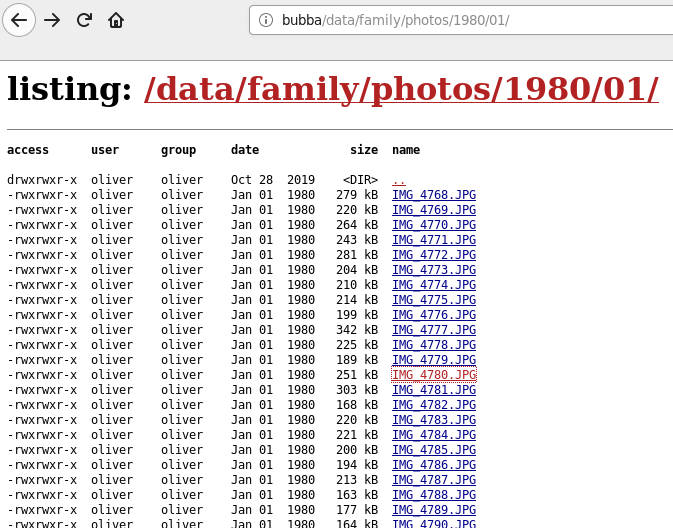
The name of the server is “bubba” and at this point pointing a web browser to http://bubba/ already worked, but it only showed a simple listing of file names like this:

Next I installed the Slideshow Firefox add-on on all our computers, and now the image folder is presented like this:

Mission accomplished! 😀